Adding a Custom Form Element with Rich Text Field to Sitecore Forms

When I started working on Sitecore Forms, the very first thing that surprised me is that Sitecore doesn’t provide an Rich Text (HTML Raw) field OOTB. It do provides a Text field which can help us in providing the context about the forms.

But…In certain situations, we might need some Rich Texts to be included in the form like an Anchor Tag or some other HTML Elements that is not just texts.

These scenarios can however be handled in several ways, like adding a separate rendering that can in turn call the System->MVC Form using it’s ID and then passing on the data source to it and then adding the required Rich Text Contents Statically in the Rendering.

<HTML Elements></HTML Elements>

@Html.Sitecore().Rendering(“System->MVC Form Rendering ID”, new { DataSource = “The Concerned Form (Data Source) ID”})

<HTML Elements></HTML Elements>

But this can’t help at all times and it doesn’t make the form customizable down the lane. It allows you only to add the html elements by the beginning/end of the forms.

However, just like every other components in Sitecore, Even in Sitecore Forms you can add custom fields. In fact they have provided a decent documentation on how this can be done here. The article provides a better view on the steps to be followed for creating Custom Form Elements. It is for creating a Video Element.

Making use of it, creating a Custom Form Element – Rich Text Field thought I could share some of my experience here.

Step 1: Create a Rich Text Template with a field of Rich Text type. Remember to create the Custom Field in the path /sitecore/templates/System/Forms/Fields/Custom Fields/Rich Text based on the /sitecore/templates/System/Forms/Fields/Field template or create one using System template and inherit Field, Label Settings

  • Now, we have to create the standard template. The Standard Value will be referred when loading the custom element to the form (Dragging/Dropping) hence it is important to add them. Else, we will be facing issues while loading the elements to the form.
In heritance 
Fields 
Custom Fields 
g.] Rich Text 
Button 
Checkbox 
Date 
Dropdown List 
Email 
Email Confirrnation 
Field 
File Upload 
List 
Builder 
Data 
Content 
Rich Text 
Add a new field 
Add a new section 
Rich Text 
Single-Line Text

Step 2: Create a Model/View for the Custom Form Element.

  • Model to be inherited from Sitecore.ExperienceForms.Mvc.Models.Fields.FieldViewModel so that we can override InitItemProperties and UpdateItemFields, where we will set and update the field value when we create and update Field in Form Editor or Under Sitecore/Forms in Content Editor.
_MvcOuterLayout.cshtml 
_TwoColumnCategoryLayoutcshtml 
Sitecore. Data . Items; 
Si tecor•e 
. Data . Fields; 
System; 
S i tecore ; 
Sitecore. Di agnostics ; 
_MainLayout.cshtml 
RichText.cshtml 
Guardian 
11 
18 
20 
26 
Mark3.Websites.Guardian.Fields.RichTe 
using 
using 
u s ing 
u51ng 
using 
namespace mark3.kbsites.Guardian. Fields 
[Serializable] 
public class RichText : FieldVi+&deI 
public string RichTextFieId 
get; 
g: 
O 
O 
protected override void item) 
Assert. 
base. Initltempr•operties (i tan) ; 
s.RichTextFieId = StringUtiI.GetString(item. Text"] -Value); 
protected override void item) 
Assert. 
th)sc item) ; 
item. Text"]?. SetVaIue(RichTextFieId, 
true) ;
  • Now we will create a View that renders this Custom Field Value in the Form while rendering it the browser. Key point to note is, Sitecore has the Form Field’s Views under Views/FormBuilder/FieldTemplates/. It is best to keep the Custom Form Elements View here as well. Create a similar folder structure in the Visual Studio Solution and add the view there.
NewVolume(D:) Websites Mark3 sc931sc.dev.local Views > FormBuilder FieldTemplates
_MvcOuterlayout,cshtml 
_TwoColumnCateg 
_Mainlayout.cshtml 
RichText.cshtml*X 
ek3. Nebs1tes. Guard1M. F1e1ds. chText 
Oltml.

Since, we have nothing much to add to the Rich Text like tracking or styling or validating we can leave it here as it is.

Step 3: Creating Form Section Elements in Core Database.

These steps are just to show the way to add the sections and other styling/validation details in the Form Editor. It can be extended based on the custom field’s requirement.

  • Create a item for Rich Text based on the template “/sitecore/client/Business Component Library/version 2/Layouts/Renderings/Forms/Form/Form Parameters ” under “/sitecore/client/Applications/FormsBuilder/Components/Layouts/PropertyGridForm/PageSettings/Settings/” name it “Rich Text”
DatePicker 
DropDownList 
EmailConfirmation 
FileUpload 
List80x 
MultiLineText 
Number 
Page 
Password 
PasswordConfirmation 
RadioList 
RichText 
Sect on 
RichText 
Quick Info 
Item ID: 
Item name: 
Item path: 
Template: 
Created from: 
Item owner: 
(11959687-78A&48F+90A8-295877658E08} 
RichText 
/sitecore/client/AppIications/Formsauilder/ComponentsJLayoutsJProperWGridForm/PageSettings/Settings/RichText 
/sitecore/clierwausiness component Library/version 2JLayouts/Renderings/Forms/Form/Form Parameters - {72E58860-AC29-47E1-A1 C5-8F9E492DB999} 
(unknown] 
sitecore\Admin
  • One key point to be noted here is we won’t be able to insert the item via Insert-> Insert from Template. As the Insert Options for the parent item – Property Editor Settings is configured in such a way 😦 So, you can either copy the other items like Text and alter as per our requirement or you can use Sitecore Rocks and do the changes.
  • Under Rich Text create a item based on the template /sitecore/client/Applications/FormsBuilder/Common/Templates/FormSection and name it Details. Or you can copy the details item from Text (/sitecore/client/Applications/FormsBuilder/Components/Layouts/PropertyGridForm/PageSettings/Settings/Text)
  • Under Details add an item Rich Text based on the template /sitecore/client/Business Component Library/version 2/Layouts/Renderings/Forms/Form/Templates/FormTextBox Parameters. (Although this is not required for now, just add the FormLabel element and update the RenderingitemId with the below values.
N umber 
page 
Password 
passwordConfirmatio n 
RadioList 
RichText 
Details 
Rich Text 
Section 
SingleLineText 
Text 
Stylesheet 
Item ID: 
Item name: 
Item path: 
Template: 
Created from: 
Item owner: 
Appearance 
(F661E544-8E50-4346-A744-BEC7B296D7DD) 
Rich Text 
/sitecore/clienb'Applications/Formsauilder/ComponentsJLayoutsJPropertyGridForm/PageSettings/Settings/RichText/Details/Rich Text 
/sitecore/client/ausiness Component Library/version 2/Layouts/Renderings/Forms/Form'Templates/FormTextBox Parameters • 
[u n known] 
sitecore\admin 
IsEnabled Specifies if the control is enabled (shared, standard value)

  • Now, add the created Rich Text in the Details item – ControlDefintions and  update the Configurationsitem.
EmailConfirmation 
FileUpload 
ListBox 
MultiLineText 
Number 
Page 
P assword 
PasswordConfirmation 
RadioLi5t 
RichText 
Details 
Rich Text 
Section 
SingleLineText 
Text 
Stylesheet 
Item path: 
Template: 
Created from: 
Item owner: 
/sitecore/clienüApplications/Forms3uilder/ComponenWLayouts/PropertyGridForm/PageSettings/Settings/RichText/DetaiIs 
/sitecore/client/Applications/Formsauilder/Common/Templates/FormSection • {F698FE6D-3SCA-4783-B36C-34928F3A23F2} 
[unknown] 
[u n k nown] 
Configurationltem [shared]: 
sitecor ent/Applications/FormsBu ilder/Components/Layouts/PropertyGridForm/PageSettings/Common/Sections/Deta IsExpander 
ControlDefinitions - For each control item ID, a control Will be created. use vertical bar (l) for multiple IDs [shared]: 
Edit 
FieldName 
Rich Text

Step 4: Now the final act, piecing things together,

  • Create an item of type, /sitecore/templates/System/Forms/Field Type under /sitecore/system/Settings/Forms/Field Types/Basic so that this field type is displayed under Basic Section of the Field types in the Form Editor.
  • Fill in the fields with the values, provide the View Path (Path of our .cshtml file created for rendering the field) , the Model Type – the Rich Text Model Namespace and Assembly.
  • In the Property Editor select the one which we created.
  • Finally, update the Template – Rich Text which we created first in the Field Template field.

All Set now and when we open the Form Editor include the Rich Text to the Form,

Finally, when rendered,

Ignore the poor choice of use case for the custom field.

NOTE:

  1. We wouldn’t be able to show the Rich Text Field in the Form Editor section as of now. This is because, if we have to do so, we have to create a FormRichTextBox Parameter template/item and include corresponding rendering and relevant items. Which will allow us to add/edit the rich text content in the Data Section of the Field in the Form Editor Screen.
  2. I would have written in a way to add the Data Section here and the binding details for rich text which don’t use. I added them so that it will be considered while developing custom fields that actually requires such sections.
  3. Now, to the point, we can edit this Rich Text Field via Content Editor. Access the forms under Sitecore/Forms/

Update:

  • You can fix the issue (Not being able to update the field value in form designer screen) by updating the custom field model property in core DB- Property Editor Setting – Binding Configuration to camelCase as below

Okay, Got My Sitecore JSS License… Now what?

Merely 6-8 months ago came across this term – SitecoreJSS. And people raving about how awesome it was. Just had  a glance back then. Must admit, it was really impressive and I thought this must the best chance for a back end developer like me to start exploring front end technologies. After a long time got the Sitecore JSS enabled license and decided to give it a try.

In this post, I will share my experience on Setting up my First Simple Hello World kinda JSS App using React. Primarily focusing on How to setup Sitecore JSS, components needed. Creating a Sitecore React JSS App in Disconnected mode at first and then creating a simple single line text component in the app, creating a placeholder for the component and adding it to the layout and then deploying the app to Sitecore moving it to Connected Mode/Integrated Mode.

Sitecore Web App development over the years have been solely based on MVC.  The traditional Sitecore Web App development involves creating components using back end components – C# and .NET MVC. This has allowed only developers with  back end – C# experience to be able to make the best use of Sitecore.

In order to overcome these concerns and to leverage the vast community of Front End Developers and esp. with the front end paradigm shift that has happened in the last decade, Sitecore has unveiled it’s JSS for front End Developers.

Sitecore JavaScript Services is a SDK for JavaScript developers for building web applications using Sitecore and JavaScript Libraries/Framework. (React/Angular/Vue)

In a Nut Shell JSS enables you to create Sitecore Websites using solely Front End Languages.

First the Requirements:

  1. Sitecore 9.0 and above. (Although for a JSS App to run in Disconnected mode you don’t need Sitecore. However at some point of time in the JSS App development cycle, it must be deployed to a Sitecore instance)
  2. Node.js latest LTS
  3. NPM 5 or above

Step 1: Installing the JSS Package

  • At this point of time, I am using Sitecore 9.3 and using Sitecore JSS 13.0
  • Download the appropriate JSS Version from dev.sitecore.net
jss 13 
Мате 
я 
Sitecore JavaSchpt Sewices Sewer for Sitecore 9.3 ХР 1300 rev. 
1909241ip 
Date modified 
1/27/2020 9:31 рм 
Туре 
Compressed (zjpp- 
Size 
1,659 кв
  • Install the package using Sitecore Installation Wizard.
Install a Package 
Select a package to install. 
Name: 
Sitecore JavaScript services server for Sitecore 9.3 XP 13.0.orev. 1909242ip 
Choose package 
Upload package 
Cancel
  • Agree to  the terms and conditions and finally click Install.
  • Once the package has been successfully installed, you will be able to see JavaScript Services item under Sitecore->Templates->Foundation in the content tree.

Install Node.js and NPM add the node component to Windows Environment Variable.

Step 1.1: Installing the required NPM Components and CLI

  • Install @sitecore-jss/sitecore-jss , @sitecore-jss/sitecore-jss-cli , @sitecore-jss/sitecore-jss-react. We’ll be using them for now.
  • While installing them you can opt to install these packages globally which can be helpful.
  • Create a proper folder structure and install them so that on a longer run, it will be helpful for adding it to a source control.
  • However, there are many other packages you can download that will help your Sitecore JSS Development from https://www.npmjs.com/org/sitecore-jss

Step 2: Creating you first React App

  • For creating JSS app, we use create keyword and then the app name and finally the template name.
  • Template is nothing but a predefined set based on which the app will be created. There a different types of templates based on the framework/library and in fact we can make use of already created app as a template and create new apps based on that.
  • In CMD, navigate to folder in which you want to create your JSS App and
    • Jss create <<App Name>> react
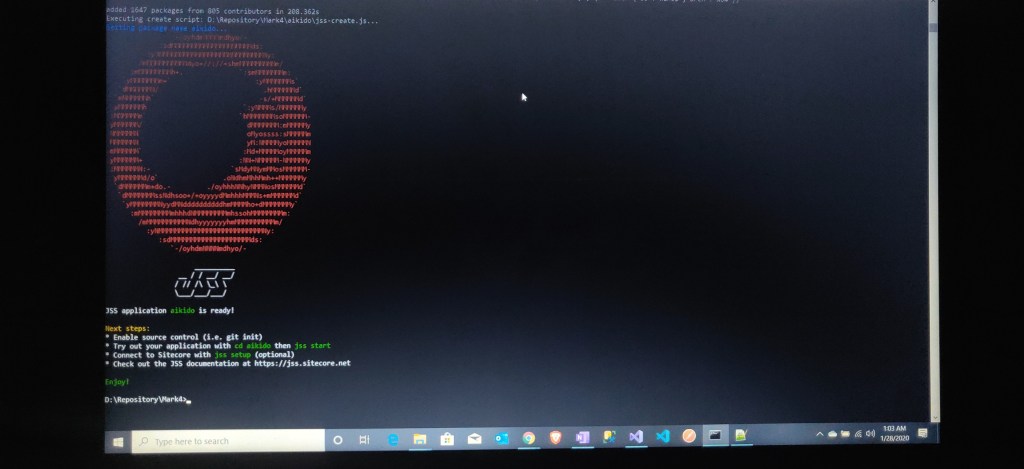
  • Once, it’s created you will see a screen like this,
@dded 01647 packages from 805 contributors in 208.362s 
Executing create script: D: 
ofiyossss : 
st'dy+tlyrmosnnt'öl- 
-/oyhdntmtbdhyo/- 
DSS application 
is ready! 
aikido 
Next steps: 
* Enable source control (i.e. eit init) 
* Try out your application with 
cd aikido 
jss start 
(optional) 
* Connect to Sitecore with 
jss setup 
* Check out the JSS docwentation at https://jss.sitecore.net 
Enjoy! 
p Type here to seat(h 
1:03 AM 
1/28/2020
  • As per the instruction, navigate to the App folder and  enter jss start
  • You will be redirected to locahost:3000/
Welcome to Sitecore JS: X 
(J) localhost:3000/ 
SITECORE 
Welcome To The Dojo 
Welcome to Sitecore JSS 
Thanks for using JSS!! Here are some resources to get you started: 
Documentation 
The official JSS documentation can help you with any JSS task from getting started to advanced techniques. 
Styleguide 
Documentationö Styleguide GraphQL 
The JSS styleguide is a living example of how to use JSS, hosted right in this app. It demonstrates most of the common patterns that JSS implementations 
may need to use, as well as useful architectural patterns. 
GraphQL 
JSS features integration with the Sitecore GraphQL API to enable fetching non-route data from Sitecore - or from other internal backends as an API 
aggregator or proxy. This route is a living example of how to use an integrate with GraphQL data in a JSS app. 
This app is a boilerplate 
The JSS samples are a boilerplate, not a library. That means that any code in this app is meant for you to own and customize to your own requirements. 
Want to change the lint settings? Do it. Want to read manifest data from a MongoDB database? Go for it. This app is yours.
  • Let’s check the folder structure created.
Repository Mark4 aikido 
Name 
build 
data 
node_modules 
public 
scripts 
sitecore 
. eslintrc 
gitignore 
prettierignore 
a 
LICENSE.txt 
package.json 
package-lockjson 
Date modified 
1/28/2020 12:56 AM 
2/2/2020 614 PM 
1/28/2020 12:56 AM 
1/28/2020 1:03 AM 
1/28/2020 12:56 AM 
1/28/2020 12:56 AM 
1/28/2020 12:56 AM 
2/2/2020 6:13 PM 
1/30/2020 12:20 AM 
1/28/2020 12:56 AM 
1/28/2020 12:56 AM 
1/28/2020 12:56 AM 
1/28/2020 12:56 AM 
1/28/2020 100 AM 
1/28/2020 100 AM 
1/28/2020 12:56 AM 
Type 
File folder 
File folder 
File folder 
File folder 
File folder 
File folder 
File folder 
File folder 
File folder 
ESLINTRC File 
GITIGNORE File 
PRETTIERIGNORE 
Text Document 
JSON File 
JSON File 
MD File 
Size 
12 KB 
626 KB 
117KB
  • We’ll look into each folder and about the files they  have and it’s use as we progress.

As of now, we have installed Sitecore JSS Package and Have created a Sitecore JSS React App which is in disconnected mode.

Before proceeding further,  I would like to share about the JSS Application modes. The official Sitecore Documentation can be found here

Disconnected Mode: No dependency with Sitecore instance. Can run on it’s own. Has the required content/data for it run. Can you used initially, before Sitecore is installed and setup. (Current State of our React App)

Connected Mode: The disconnected App will be deployed to a Sitecore instance. Sitecore instance is required. Content/Data will be provided from Sitecore.

Integrated Mode: Same as Connected + Uses SSR Server Side Rendering. Not in the scope of this post. Will try to write more on this in upcoming Posts.

Step 3: Creating a Simple Single Line Text Component

  • To create a component, use, jss scaffold <<component name>>
D: scaffold Aikido-page-title 
> npm run scaffold Aikido-page-title 
> aikido@13.ø.ø scaffold D: 
> node scripts/scaffold-component .js "Aikido-page-title" 
Component Aikido-page-title has been scaffolded. 
Next steps: 
* Define the component's data in 
sitecore\definitions \ components \Aikido-page- title. sitecore. j s 
* Implement the React component in 
src\components \Aikido- page- title\index. j s 
* Add the component to a route layout (/data/routes) and test it with jss start
  • This in turn creates related files in the project folder.
    • \aikido\src\components\Aikido-page-title\index.js
    • \aikido\sitecore\definitions\components\Aikido-page-title.sitecore.js
  • Aikido-page-title.sitecore.js – Similar to create template section of traditional sitecore. We define the component’s fields and it’s type here.
  • Index.js – Contains the Structure for the fields of the component to be displayed.

Now, we will add our component to a sitecore page. Just like traditional sitecore, Sitecore JSS also uses dynamic layout meaning we need to create our placeholder or use existing placeholders and our component to it in the Page item.

  • To create a new Placeholder, add the placeholder entry to \aikido\sitecore\definitions\placeholders.sitecore.js
emyml routes snecorejs component•contentstecore.js dictionarysitecorejs •c 
// eslint-disable-next-line no-unused-vars 
import Manifest ) from ' @sitecore-iss/sitecore-iss-manitest' ; 
Adding placeholders is optional but allows setting a user-friendly display r 
items will be created for any placeholders explicitly added, or discovered i 
Invoked by convention (A .sitecore.is) when •iss manifest' is run. 
epaxam {Manitest} manifest 
- export default function addP1aceh01dersToManifest (manifest) 
manifest. addP1aceh01der ( 
name: 'iss-main', displayName: 'Fain' ) , 
// you can optionally pass a GUID or unique (app-wide) string as an ID 
// this will inform the ID that is set when imported into Sitecore. 
// If the ID is not set, an ID is created based on the placeholder name. 
name: 'iss-tabs', displayName: 'Tabs', 
id: 'tabs-placeholder' ) ,
  • Add the placeholder to page layout – \aikido\src\Layout.js
  • In the JSS terms, let’s add our component to the route. Include the Placeholder and it’s field data in a page item – \aikido\data\routes\en.yml in this instance.
8 en-yml placeholders.sdecorejs Broutes.sitecore.js •component-contentstecorejsal • dictionarv.sitecore.is •contentsitecorejsu[ 
10 
12 
12 
14 
16 
17 
1B 
19 
20 
21 
22 
23 
24 
26 
27 
29 
30 
31 
32 
This is a route layout definition. 
The route definition defines which Sitecore components are present on a route, 
what their content data is, and which _placeholder they are placed in. 
This particular route definition is for the home route — , 
so it defines the 
components shown on the initial page of the app. 
You may use equivalent JSON files instead of YAML if you prefer; 
however YAML is simpler to read and allows comments like this one : ) 
Setting an ID is optional, but it will allow referring to this item in internal links 
the ID can be a app-wide—unique string, or a GUID value. 
id: home—page 
Route—level fields are appropriate for page level data like contents 
Define route level fields in /sitecore/definitions/routes.sitecore 
e fields : 
pageritle: Welcome to Sitecore JSS 
Define the page layout starting at the root placeholder — 
in this case, 
' 3 ss—maln' 
root placeholder names are defined in the package. ison config section (required for Sitecore deployment) 
- placeholders : 
— corvonen 
fields : 
— corponentName : 
ContentBIock 
fields : 
heading: Welcome to JSS 
to author content in YAML, use _multi—line values (prefixed with + endline) 
as long as the same indent is at the beginning of each line, no escaping 
is required at all in the value, making it easy to read 
content : 
for using 'SS! Here are some resources to get you 
Official JSS documentation can help you With any JSS task from getting started to advanced techniques.

The thing about using a node.js is it’s faster, as soon as we make these changes it will be reflected in the browser. Unlike, Sitecore MVC where changes at times  requires the DLLs to be published and it never fails to test your patience.

Welcome to Sitecore JS:X + v 
+ + O G) localhost:3000/ 
SITECORE 
Welcome To The Dojo!! 
Welcome to Sitecore JSS 
Thanks for using JSS!! Here are some resources to get you started: 
Documentation 
The official JSS documentation can help you with any JSS task from getting started to advanced techniques. 
Styleguide 
Documentation 
The JSS styleguide is a living example of how to use JSS, hosted right in this app. It demonstrates most of the common patterns that JSS implementations 
may need to use, as well as useful architectural patterns. 
GraphQL 
JSS features integration with the Sitecore GraphQL API to enable fetching non-route data from Sitecore - or from other internal backends as an API 
aggregator or proxy. This route is a living example of how to use an integrate with GraphQL data in a JSS app.

Step 4 Deploying the App to Sitecore:

  • To deploy our app to sitecore, we need to setup scjssconfig.json, for  which we need some key information
    • Local Sitecore Instance Path
    • Sitecore Layout Service API Key
    • Host Name
    • Other details like Import Service URL, Deployment Secret can be set to use default
  • Host Name: Mention the Host Name of the JSS App to be deployed in the aikido. Also, configure this HostName in the IIS Bindings, Host File.
  • API Key. It is important for Layout Service to be used.
    • To Create a Sitecore Layout Service API Key, create a API Key item in the name of the App using API Key template as shown below.
Insert Rules 
Analytics 
Buckets 
Content Testing 
Email 
Feature 
Forms 
Foundation 
Layouts 
Project 
Rules 
Security 
Services 
O API Keys 
Aikido 
Throttle Strategies 
Simulators 
Subitems Sorting 
Validation Rules 
workflow 
Item ID: 
Item path: 
Template: 
Created from: 
{IAC63E4A.0879-4C09.A48E.7A5F2%91S39 
/sitecore/systemJSetting:JServices/API KeysIAikido 
/sitecore/temp1atesjsystemßemces/API Key - (A686806sD612-401 F-A40A-CDSBA0857B81) 
[unknown) 
sitecoreudmin 
CORS origins [shared): 
Allowed Controllers [shared]: 
Impersonation user - Anonymous users will be impersonated as this user [sharedJ: 
extra us
  • Sitecore API Key Item has three fields that we need to configure.
    • CORS Origin – Cross Origin Resource Sharing – Usually the Domain Name of the App so that it can access the Sitecore API. * allows all origins
    • Allowed Controllers – Specify the Layout Service/ JSS Controllers * allows all the controllers to be accessible.
    • Impersonation User – Self Explanatory This user’s security context will be used while accessing anonymously the app. Authenticated users details will be used if accessed after authentication
  • To Check whether the layout service and the API key configured properly, check the below URL and you will be redirected to a screen like below.
1 AC63E4A-0879-4C09-A48E-7A5F2969153 F) 
pageEd*ing: true. 
• user: { 
: "Admin" 
: "website" 
page-State : 
"edit". 
language : " 
rout e : { 
- fields: { 
Text : { 
"kp a single connected platform that also integrates with other platforms, to a single view of the customer in a big data marl 
cmplexity that has previously held marketers back, the latest version of Sitecore makes customer experience highly achievable. Learn how the latest version of Sitecore gives marke- 
capabilities to CuStCyrerS throughout an lifecycle – the technology foundation absolutely necessary to win CuStmerS for further 
Documentation site" 'Sitecore Documentation " , 
editable: 
"(input id-•fld 1180559FDEA542EA9CIC8A50F7E7eEF9 926' class-'scFie1dVa1ue• 
type—'hidden• 
with other custorner-facing platforms, to a single view of the custortær in a big data marketing repository, to completely eliminating much of the complexity that has previously held 
experience highly achievable. Learn how the latest version of Sitecore gives marketers the complete data, integrated tools, and automation capabilities to engage customers throughol 
foundation absolutely necessary to win CuStCmerS for further information, please go to the 
Documentation " 
Text" , "icon" " /temp/iconcache/office/16x16/penciI. png" , "disabledlcon" : "/temp/penciI_disabIed16x16.png" , "i5Divider" :fa15e, "tooltip" "Edit the text", "type" :null), {"click" : "chrome:fie: 
value : tr•ue}) " "header" : "icon" : " / terp/iconcache/office/16x16/font_s tyle_bold. png" , "di sabledlcon" " / sabled16x16. png" , "åsDivåder" fal se , "tooltip" : "Bold" , "typ 
userlnterface:true, value: true))" , "header" : 
" • " . png" , "di sabledlcon" : png" , "isDivider" : f' 
Icon . 
value : true}) " , "header" : " icon" : " , " disabledlcon" : png" " : fal se "tooltip" : "I 
click" : "chrome: field : insertexternall ink" , "header" , "i con" : " 'temp/ iconcache/office/16x16/earth_Iink.png" , " : png" , " i5Divider" : fal se, 
" , type" -'null}, {"Click" : insert link , 
field. " 
" "header 
" " " , "Icon" . png" , • 'disabled Icon": : false, 
{"click": "chrome: field: removelink", "header : 
" • " 'temp/ iconcache/office/16x16/Iink_broken.png" , " disabledlcon" : "'temp/ I .png" , "i sDivider" : false, "tooltip' 
"icon . 
; field ; "header"; "Insert image % : 
field. " 
type" : "chrune:cotmon , "header" 
: "Edit the "elated 
item" , "icon" : "/temp/iconcache/office/16x16/cube5 .png" , "disabledlcon" : "/tenp/cube5_disabIed16x16.png", "i5Divider" :fa15e, "tooltip" : "Edit the related item in the Content Editor. " , "typ 
{"click 
" "header" : 
" " icon" : " " , ' 'di sabledlcon" : " / temp/ users. 
or edit personalization for this component. "type" 
"header" : "Edit 
variations", "icon" ; png" ; ; false, "tooltip" ; "Edit the variations " "type" ; "Sticky"} ] , ' 
, "custom" enter text of the item here. text" te 
5tyIe-"Iine-height: 22px; ">From a single connected plat- 
platforms, to a Single Of the Customer in a big data marketing repository, to eliminating much Of the that has previously held marketers back, the latest 
I earn latest data. am' ramhilities 
whi evahlp_ 
itønativø li-
  • Now all set, let’s configure scjssconfig.json with the available data. Use jss setup to setup the config and jss deploy config to deploy the config
D: setup 
Found existing D: The existing config will become defaults in this setup session. 
Path to the Sitecore folder 
Sitecore hostname Chttp://aikido.dev.local]: http://aikido.dev.local 
Sitecore import service URL Chttp://aikido.dev.local/sitecore/api/jss/import]: 
Sitecore API Key [{1AC63E4A-0879-acø9-A48E-7A5F2969153F}]: 
Please enter your deployment secret [w1f4gt77wv7wuh8h8ch6mvk1un8iz21nnhiae8qp8ko] : 
Deploy secret Sitecore config written to D: 
Ensure this configuration is deployed to Sitecore. 
JSS connection settings saved to D: 
NEXT STEPS 
* Ensure the hostname in /sitecore/confie/* -config is configured as aikido.dev_ local, 
* Deploy your configuration (i.e. •jss deploy config') 
* Deploy your app (i.e. 
•jss deploy app -c 
* Test your app in integrated mode by visiting http://aikido_dev. local 
D: deploy config 
Creating nonexistant destination path c:\inetpub\wwwroot\scq3sc_dev _ 
Copying _/sitecore/confie to c: \ 
JSS app build artifacts have been deployed to Sitecore- 
and in hosts file if needed.
  • Now everything is set for the App to be deployed. Use jss deploy app -c -d  to deploy the app. (use jss deploy app –help to know about the optional parameters and it’s use)
  • Once, the deployment is completed, you should be able to see the below success message
server. bundle. js 1.26 MiB 
ø 
[emitted] main 
Entrypoint main server-bundle.js 
./src/temp/config.js 481 bytes {O) [built] 
[13] 
[14] 
[16] 
[20] 
[23] 
[35] 
[53] 
[55] 
[96] 
[106] 
[167] 
[168] 
external 
external 
external 
external 
external 
external 
external 
"stream" 42 bytes {G} [built] 
"url" 42 bytes {Ø} [built] 
"buffer" 42 bytes {G} [built) 
"http" 42 bytes {0} [built] 
"https" 42 bytes {e} [built] 
"util" 42 bytes {0} [built] 
"zlib" 42 bytes {0} [built] 
./build/index. html 2.26 KiB {e} [built] 
./src/temp/GraphQLFragmentTypes.json 4.68 Kid {O} [built] 
./src/assets/sc_logo.svg 18 KiB {e} [built) 
. /node_modules/encoding/lib sync 16ø bytes {ø} [optional] [built] 
(webpack)/buildin/harmony-module.js 573 bytes {e) [built] 
./src/assets/app .css 360 bytes {e) [built] 
./server/server.js 117 modules 622 Kia {e} [built] 
./server/server.js 7.39 Kia [built] 
./src/1ib/GraphQLC1ientFactory.js 2.02 KiB [built] 
./src/i18n.js 2.56 KiB [built] 
./src/RouteHand1er.js 1ø.5 KiB [built] 
./src/AppRoot.js 1.94 KiB [built] 
./server/htm1Temp1ateFactory. js 3ø8 bytes [built] 
./src/dataFetcher.js 703 bytes [built] 
./src/temp/componentFactory.js 4.12 KiB [built] 
./src/1ib/SitecoreContextFactory.js 6e2 bytes [built] 
./src/Layout.js 2.76 KiB [built] 
./src/NotFound.js 1010 bytes [built] 
./src/1ib/GraphQLData.js 6.66 Kia [built] 
106 hidden modules 
154 hidden modules 
WARNING in ./node_modules/encoding/lib/iconv-loader . js 9:12-34 
Critical dependency: the request of a dependency is an expression 
@ ./node_modules/encoding/lib/encoding.js 
@ ./node_modules/node-fetch/lib/body .js 
@ ./node_modules/node-fetch/index.js 
@ ./node_modules/isomorphic-fetch/fetch-npm-node.js 
@ ./src/1ib/GraphQLC1ientFactory.js 
@ ./server/server. js 
Creating nonexistant destination path c: \inetpub\wwwroot\sc93sc.dev.local\dist\aikido. 
Copying D: to 
'SS app build artifacts have been deployed to Sitecore. 
D: \Repos i

Now, let’s try accessing our JSS App via mentioned hostname and also, the Aikido app also being deployed to Sitecore instance, accessible in the content tree.

Welcome to Sitecore JSS 
X O Content Editor 
C O Not secure I aikido.dev.local/ 
SITECORE 
Welcome To The Dojo!!! 
Welcome to Sitecore JSS 
Thanks for using JSS!! Here are some resources to get you started: 
Documentation 
The official JSS documentation can help you with any JSS task from getting started to advanced techniques. 
Styleguide 
Documentations 
Styleguide GraphQL 
The JSS styleguide is a living example of how to use JSS, hosted right in this app. It demonstrates most of the common patterns that JSS implementations 
may need to use, as well as useful architectural patterns. 
GraphQL 
JSS features integration with the Sitecore GraphQL API to enable fetching non-route data from Sitecore - or from other internal backends as an API 
aggregator or proxy. This route is a living example of how to use an integrate with GraphQL data in a JSS app. 
This app is a boilerplate 
The JSS samples are a boilerplate, not a library. That means that any code in this app is meant for you to own and customize to your own requirements. 
Want to change the lint settings? Do it. Want to read manifest data from a MongoDB database? Go for it. This app is yours. 
How to start with an empty app
HOME 
Change 
NAVIGATE 
Publish 
ANALYZE 
VERSIONS 
PUBLISH 
Experience Editor Publishing viewer 
Preview 
CONFIGURE 
PRESENTATION 
SECURITY 
VIEW 
MY TOOLBAR 
search 
sitecore 
, content 
h€rne 
aikido 
Dictionary 
Cornponents 
O content 
home 
Page n 
G Aikido-page-title-I 
G ContentBlock-2 
graphql 
styleguide 
Forms 
Layout 
Media Library 
System 
Templates 
Aikido-page-title-I 
- [home-jss-main-Aikido-page-title-1] 
Quick Info 
Item ID: 
Item name: 
Item path: 
Template: 
Created from: 
heading: 
D2F-SE89-A7S5-D134DF53436F) 
home-jss-main-Ajkidt»page-titIe-1 - Display Name: Aikido-page-title-I 
/sitecore/contenvaikido/home/Page Components/home-jss.main.Aikido-page.titIe-1 
'sitecore/temp1ates/Projecvaikido,'Aikido-page.tit1e {988FD227-3165-5436-AC09-A23769E2A75C) 
[unknown] 
sitecoreysslmport 
welcome To Dojo!!!

The Aikido site will be fed with data from Sitecore. Even the Sitecore Experience Editor can be used by Content Authors/Editors for editing the Jss App pages.

The intention of this post is to surface  the Sitecore JSS, a small intro to it’s project development life cycle. To create a bigger components and with reasonably a  better UI, we need to go through deeper to other major components of Sitecore JSS. Planning on to write about them in my upcoming posts. Hope I get to do them!!

Extending MultiList Field – Display particular Item’s Field Value in the Selection List

I came across a weird requirement related to Sitecore MultiList field. Usually MultiList Field makes use of Item’s Display Name property and shows those values in the selection list.

Instead of Display Name, it is requested to display the value of the corresponding data source item’s particular field value. I didn’t get to know much about the background behind this requirement. But I always wanted to know about the behind screen functions of Sitecore and thought this might be a good opportunity to get my hands dirty as these would come in handy, later when I start working on SPEAK.

I searched for related articles and unfortunately I couldn’t find anything helpful. So, I decided to reverse engineer Sitecore’s OOTB MultiList Field and try to leverage that and modify the control  of the existing MultiList field to match the requirement.

I also, thought it will be worth it to share the steps followed. I wanted it to be generic, so that rather than for this particular requirement, these steps can come in handy for a more general purpose. Aka like creating a custom control or extending the OOTB Sitecore Features. Exploring how the OOTB features work – to a more granular level.

So started looking into existing MultiList field’s Control, the related configs and finally after decompiling the related Sitecore DLL…Voilà!!

Existing MultiList Field’s Control Source,

  • All the information about existing field types will be available in Core DB. In our case, /sitecore/system/Field types/List Types/Multilist.
system 
Aliases 
Dictionary 
Field types 
Analytics 
Simple Types 
List Types 
Checklist 
Droplist 
Grouped Droplink 
Grouped Droplist 
Lookup Name Lookup Value 
G Multilist 
Multilist with Search 
G MultilistDisp1ayTitle 
Multiroot Treelist 
Name Lookup Value List 
Name Value List 
Item path: 
Template: 
Created from: 
Item owner: 
'sitecoreJsystern/FieId types/ List Types/MuItiIist 
,'sitecoreJtemp1ates/SFtemrremplatesrremplate field type - 17D6A-11 
[unknown) 
sitecor&dmin 
Assembly ghared): 
Class [shared]: 
content:MuItiIistEx

The related configs,

Via showconfig.aspx,

After decompiling the related DLL and traversing to the corresponding class. Courtesy JustDecompile.

Now we could clearly see by default it’s using the relative item’s Display Name while showing in the selection list. Now instead of the Item’s Display Name we need to show the Item’s particular field value.

This can be done by creating a new MultiList Field based on the OOTB MultiList and update it’s Control Source with custom Control Source.

Create a new field based on MultiList field – MultiListDisplayTitle

Now, we will create a custom Control using existing MultiList field control and include our changes.

For creating a custom control, we should extend Sitecore.Web.UI.HtmlControls.Control and must override DoRender(HtmlTextWriter output) method that will be called by default when this particular field is rendered in Sitecore.

For the time being I am just replacing the Display Name with the Item’s Field Name in the OOTB MultiListEx class and using it . For the demo purpose, I am making use of a field name – Author Name.

Now, we will include this class’s assembly name, namespace etc and configure a patch. I have added custom as the prefix.

And final step, update this control in the newly created MultiListDisplayTitle field

Created a new template with both MultiList and MultiListDisplayTitle field, both having same data source. The Data Source, I gave here has children having the field named Author Name.

Below, you can see MultiListDisplayTitle displaying the field Author Name value in the selection list and MultiList displaying the DisplayName in the selection list.

.D 404 
O Around the world 
Article Page 
3us.iness 
India Today 
Logistics 
Technology 
Sports 
Article Page 
l' Shared Content 
Custom 
Check 
Logistics 
O Navigation 
Mysite 
Mark2 
Article Title: 
Select all 
All 
The Hindu 
Guardian 
Pages Title: 
Select all 
All 
Deselect all 
Deselect all 
Pakistan shells forward posts along LOC in Poonch 
Stalin calls on parents Of injured girl Rajeswari donates 5 lakh for medical expenses 
Selected 
Times Of India 
Selected 
74 parents in Delhi NCR want annual scheduled smog break schools Survey

This MultiListDisplayTitle can be used in the code base similar to MultiList field.

Sitecore Personalization -Using Custom Personalization Rule

Ever since I read  that in a SUGCON Europe someone told, “The Answer to the Question, ” Can you customize in Sitecore the option to….?????” is always YES!! Irrespective how the question is finished ” in some random posts(Excuse me for the poor choice of words to recreate the context), I always wanted to extend some OOTB functionalities with custom logic. Hence, I wrote about Sitecore Custom Command, Sitecore Custom Workflow and others. This post is a new arrival to the that line up.

I have always wanted to write about personalization. How it can be useful and what difference does it really make. Instead of just writing about the steps and procedures I wanted to write a post along with the Business Case.

Also,

Rather than starting of with existing OOTB Rules, I thought I would start with a custom rule to personalize the contents of a page in Sitecore.

In this post, we will see what is personalization how and when to personalize the contents. Finally, we will work on creating a custom personalization rule.

Personalization

Personalization is the method for displaying targeted, relevant content to your contacts based on their characteristics and behavior, such as location, gender, or previous visits. With personalization, you can ensure that the right content reaches the right contacts, for example, by showing, hiding, or adjusting content.

That’s it. As Simple as it is. Delivering right content to right visitors.

In this post, we wont be working with Contacts or any other xdb data for personalizing the contents. As this would require a more vast preface. Will work on writing posts related to this down the line.

So, if not based on xdb data what else can be used to deliver a personalized content? Sitecore do come with some OOTB personalization rules and with SXA installed, this rule set now has everything needed.

In Sitecore, any content – data (template->item) is presented to users via renderings (Presentation Component). This Presentation Component has the data fed either from Context Item or via Data Source.

To start with the Basics, Personalization is nothing but showing/hiding or adjusting this Data Source based on certain rules set. So that when the rules are met a particular data is fed as source, if it’s not met, a different data is set as source or may be show/hide based on this rule.

So in the outlook, we will be delivering the perfect contents to right users .

As I mentioned, a few OOTB sitecore rules are based on xDB, GeoIP, visitors previous interaction data or current visits data. These are pretty much straight forward and can be implemented without any catalog.

Business case, when the HTTP Request has the parameter name State and it’s value is Tamil Nadu show one hero image if not show another image.

Let’s create the rule. HTTP Request Parameter Rule.

The Objective is, this rule checks for certain key value pair – HTTP Request Parameter and it’s value and returns true or false by comparing them. Based on this true/false (Bool) response, we will personalize the component (Set the Data Source for the Rendering)

To create a custom personalization rule,

  • First, we have to create a tag (/sitecore/system/Settings/Rules/Definitions/Tags/HttpRequest Parameter) based on the template tag, /sitecore/templates/System/Rules/Taxonomy/Tag
fie 
Email 
Federated Experience Manager - 
Federated Experience Manager 
Federated Experience Manager - 
Fields 
Geol? 
HttpRequest Parameter 
Indexing & Search 
Insert Options 
Interaction segrnentation 
Item Attributes 
Item Hierarchy 
Item Information 
Item Security 
HttpRequest Parameter 
Quick Info 
Item ID: 
Item name: 
Item path: 
Template: 
Created from: 
Item owner: 
(5231AE4F.E7EE.4E54B92COBD5E9651575) 
HttpRequest Parameter 
/5itecore/system/Settings/RuIes/Definitions/Tags/HttpRequest parameter 
/sitecore/templatesßystem/RuIes/Taxonomy/Tag {1 
Tag, en, 1 - {60E3E35B-CEFg-4AFA-9F8g-204ED015CCB9)
  • Now, create the corresponding element /sitecore/system/Settings/Rules/Definitions/Elements/HttpRequest Parameter based on the template /sitecore/templates/System/Rules/Taxonomy/Element Folder
  • Under this HttpRequest Parameter, create a condition
Fields 
GeolP 
HttpReqL* 
Insert 
Search 
Duplicate 
Condition 
Action 
Insert from template
  • This is where, we will write the rule condition.
Email 
Federated Experience Manager 
Federated Experience Manager - 
fields 
HttpRequest Parameter 
O Check Parameter 
Tags 
'vtsibility 
Indexing & Search 
Insert Options 
Item Attributes 
Item Hierarchy 
Item Information 
Item security 
Item Version 
Item Version CM 
Marketing Automation 
Item path: 
Template: 
Created from: 
Item owner: 
Check Parameter 
Isitecore/systemJSettingsJRuIes}DefinitionsJEIements/HttpRequest Parameter/Check Parameter 
(unknown] 
sitecore%Admin 
mere the http request [ParameterName„.name] parameter (Operatorld. Stringoperator„compares to] [Value„.specific value] 
Type [snared]: 
Mark3 Websites. Guardian. CustomRules. HttpRequestParameterValueCheck.Ma rk3 .Websites. Guardian
  • Here, fill in the Text Field. This is what will be displayed in the Rule Set Dialog Box once we have completely configured our custom rule.

where the http request [ParameterName,,,name] parameter [OperatorId, StringOperator,,compares to] [Value,,,specific value]

  • A Few Notes on the keywords I have used in the Text Field Value
    • [ParameterName,,,name] ParameterName is used to store the HTTPRequest Parameter Name.
    • [OperatorId, StringOperator,,compares to] this is used to set the comparison operator between the ParameterName and Value.
    • [Value,,,specific value] is used to store the Value of the HTTPRequest Parameter.
  • A Sneak Peak on the final output of how this rule will look like – when it’s deployed.
Personalize the comp( 
Personalize the p 
Hü*equest State Paramete 
where the http request state 
Tamil Nadu 
Default 
If none Of the Other conditio 
Create rule 
Choose conditions 
bearch for a condition 
where the region specific_ualue 
HttpRequest parameter 
where the http request name parameter 
Item Hierarchy 
where the item is the specific item or one of its ancestors 
where the item is the specific item or one of its descendants 
Edit rule 
HttpRequest state Parameter 
'dheL_e the http request parameter lamiLNadu 
x 
x 
Visits 
0% 
0%
  • The Second Field – Type in Script Section. Here we’ll add the Namespace, assembly of the class that contains the business logic to check whether this rule is passed (return true) or not (returns false)

Mark3.Websites.Guardian.CustomRules.HttpRequestParameterValueCheck,Mark3.Websites.Guardian

  • Now, include the created HTTPRequest Parameter tag which we created in the default tag.
  • Finally, include the tag created in the conditional rendering for the rule which we created to appear in the specify rules section of personalization window.

The Business Logic, It is pretty much straight forward. The class which we create must override the Execute Method, where we check the ParameterName and Value which is passed via Personalize the Component Dialog Box.

Here we use StringOperatorCondition and it’s Compare class to compare the two strings with the String Comparison operator we set in the GUI.

Now, let’s add this rule to one of our component and personalize it and check the results.

We will personalize the Hero Image component.

  • One key point is that we should enable the personalize the presentation of the component switch and include the default rule set aka when the mentioned rules are not passed and the component’s default state has to be presented.
  • Now, add the rule and set the HTTPRequest Parameter and it’s Value
  • When the condition is met show the same rendering with different data source

We can set this State – Tamil Nadu parameter to the request while hitting/redirecting to the target URL. And the page component would be personalized based on that. Sitecore do has Query String based rule similar to this, but this rule can be used in cases where Query String is not an option.

Page with Personalized Hero Image aka HTTPRequest with State Parameter Equals to Tamil Nadu

Page without  Personalized Hero Image – Aka HTTPRequest without State Parameter equals Tamil Nadu

Pardon me for the poor choice of images and relative news article. This Personalization Rule can much better be put in to great use.

Sitecore Workflow – Part 2

This is the quick short second part of the post related to Workflow, that I mentioned I would write at the end of that post.

Initially, we would have set up a workflow with option to send email when an item is submitted for Approval. We would have configured it to be sent to a single pre-defined email id. But in case of a Real Time Situation, with Workflow properly setup, the content management – Approval/Rejection etc would be handled by users with a specified role.

In this case, we have created a role called Content Manager that has necessary permissions for approving/rejecting content item changes. We can create users based on this role and they can approve/reject the content changes.

Creating Roles and assign them member of roles are quite simple and straight forward. You can do that via, Role Manager App under Access Management Section of Sitecore Launchpad.

Access Management 
User Manager 
Access Viewer 
Role Manager 
Security Editor 
Domain 
Manager

Create a role Content Manager with the Privileges.

C 
Delete 
O Not secure I cms.mysitecore.com/sitecore/shell/Applications/Security/RoIe%20Manager.aspx?sc_bw=1 
Member Of 
Add or remove the roles that the selected role must be a member of. 
New 
Role 
o 
Comment 
Role 
Role 
Role 
Role 
Log out 
x 
Search 
I Administrator 
Mem bers 
Member Of 
Doma 
Domain 
sitecore 
sitecore 
sitecore 
sitecore 
Add 
Local name 
sitecoreISitecore Client Maintaining 
sitecore\Sitecore Client Publishing 
sitecore\Sitecore Client Authoring 
Remove 
Search 
Full name 
sitecore\Sitecore Client Maintaining 
sitecore\Sitecore Client Publishing 
sitecore\Sitecore Client Authoring 
sitecore\Author 
sitecore\Analytics Advanced Testing 
sitecoreAnalytics Content Profiling 
sitecoreAnalytics Maintaining 
sitecore\Analytics Management Reporting 
sitecore\Analytics Personalization 
sitecore\Analytics Reporting 
sitecoreAnalytics Testing 
sitecoreAuthor 
sitecore\Content Editor 
sitecoreNContent Manager 
sitecore\Designer 
sitecore\Developer 
sitecore\EXM Advanced Users 
sitpcorp\FXM IJsprs 
Page 1 of (4 items)

For getting info about Sitecore Users and their Roles/Profile Info we can make use of Sitecore.Security.Accounts namespace. RolesInRolesManager.GetUsersInRole return a list of users with the specified role. Based on the User List we get, we can get the email id of individual users. This E-Mail ID can be used for triggering the Email Action mentioned in the earlier part of the post.

public static GetUser5BasedOnRole5(5tring role) 
U?ersList new 
Rol nRoIesManager . Get UsersInRoIe(RoIe . FromName(rol e) , 
User5Li5t — 
return UsersList; 
true) . ToLi5t();
public void SendMaiI(strine From, string TO, string Subject, string mailBody) 
var mail new mailmessage(From, To); 
UserList Helper.GetUsersBasedOnRoIes( Manager"); 
foreach (User user in UserList) 
mail . To.Add(user .pm•file. Email) ; 
mail . Subject • 
Subject; 
= Mai IBody; 
SmtpCIient smtp 587); 
smtp. EnableSsI 
true; 
smtp. useDefaultCredentiaIs • 
— false; 
smtp.Cr•edentiaIs new System . Net . Address", "password"); 
smtp. Send(mail) ;

As we are setting up roles and triggering workflow state changes based on the roles, whenever we add new users to this role, the workflow would still trigger mails to the new users added.

Sitecore – Item Serialization – Using Unicorn

If you have worked on Sitecore for a few weeks, then you would have come across the situation where you need to move your Sitecore content from one instance to another. Be it from your instance to your peer’s or from local instance to DEV or to UAT or may be even PROD.

Now depending upon the item count, one would have either created a package – shared it – installed those packages.

Now imagine, you have an entire content tree paired with Layouts, Renderings and templates added if you have changes in Core DB, imagine the volume of Data that needs to be moved from one instance to another. The Size of the packages would go to GBs.

Also, once you have installed and published a package, you cannot revert the item state to it’s previous state unless you have a separate physical back up of those items.

In order to overcome these difficulties, moving content from one instance to another with ease, we use serialization tools. There are many tools out there. Two of the most popular Sitecore Serialization tools include Unicorn and TDS.

TDS is not an open source. EOD. I didn’t get much chance to play around it while I write this post.  So, I couldn’t comment much on setting it up, it’s ease of use and advantages over Unicorn or other tools.

Unicorn is open source, it’s developed by Sitecore Community members. It’s kind of a free alternative to TDS.

Open Source – We can get to play with it without any fees or licenses. Hence, this post.

You can find lot of articles on web over which one should you pick. Unfortunately, this article is not one of them.

In this post, we will see how we can setup Unicorn, set the content configuration, predicates and serialization folder. How we can transfer content from one instance to another.

Most of the Sitecore Solution would follow Helix Principles, under the same principle, for setting up of a serialization module, we create a separate folder under foundation named serialization and add a serialization project.

Solution 'Markl' (12 of 12 projects) 
Configurations 
Configurations 
Properties 
References 
Env_config 
Features 
Foundation 
Serialization 
Unicom 
Connected Services 
Properties 
References 
App_Config 
App_Start 
a packages.config 
ExceptionHandling 
SitecoreExtension 
WorkFIow 
Solution Items 
Websites 
Guardian 
Markl

We can install Unicorn via NPM. Under, Manage NuGet Packages for the Unicorn Project search for Unicorn and install the latest stable version.

-Article.cshtml 
_MainLayoutcshtml 
Browse Installed Updates 
Unicorn by Kam Figy, Mark Cassidy, 774K downloads 
_Mobiles.cshtml 
Include prerelease 
_logistic.cshtml 
MainNav.cshtml 
_Mobile1.cshtml 
v4.1.1 
Unicorn 
Installed: 
Version: 
4.1.1 
4.1.1 
NuGet Package Manager: Unicorn 
Package source: nugetorg• @ 
nuget.org 
Uninstall 
Judate 
Unicorn is a utility for Sitecore that solves the issue of moving templates, renderings, and other database items between Sitecore instances. This 
package contains both the Unicorn core library and the configuration for it, which is appropriate for web projects. Install Unicorn.Core if you only wanm 
Unicorn.Core by Karn Figy, Mark Cassidy, 783K downloads 
Unicorn is a utility for Sitecore that solves the issue of moving templates, renderings, and other database items between Sitecore instances. 
Unicorn.Roles by Kam Figy, Mark Cassidy, 492K downloads 
Adds security role syncing to unicorn This package contains both the core library and the configuration for it, which is appropriate for web projects. 
Install unicornRoles.Core if you only want the library. 
Unicorn.Users by Kam Figy, Mark Cassidy, 368K downloads 
Adds user syncing to Unicorn. This package contains both the core library and the configuration for it, which is appropriate for web projects. Install 
Unicorn.UsersCore if you only want the library. 
Unicorn.Roles.Core by Kam Figy. Mark Cassidy, 519K downloads 
Adds security role syncing to unicorn Install the non-core package to get config files. 
Unicorn.Users.Core by Kam Figy, Mark Cassidy, 388K downloads 
Adds user syncing to Unicorn. Install the non-core package to get config files. 
MagicalUnicorn.MvcErrorToolkit by pure Krome, 24.6K downloads 
Magic fairy dust sprinkled Over the ASP.NET MVC framework to give you greater control Of error handling. 
Each package is licensed to you by its owner. NuGet is not responsible for, nor does it grant any licenses to, third-party packages. 
v4.1.1 
v41.1 
v41.1 
v41.1 
v41.1 
Options 
Unicorn is a utility for Sitecore that solves the issue of mcwing templates, renderings, 
and other database items between Sitecore instances. This package contains both the 
Unicorn core library and the configuration for it, which is appropriate for web projects. 
Install Unicorn.Core if you only want the library. 
Author(s): 
Date published: 
Project URL: 
Report Abuse: 
Unicorn.Core (s 
4.1.1 
Kam Figy, Mark Cassidy 
View License 
Monday, July 22, 2019 (7/22/2019) 
https://github.com/SitecoreLlnicorn/lJniccrn 
https://wvvwnuget.org/packages/unicorn/4.1 1 /ReportAbuse 
sitecore, serialization 
4.1.1) 
Rainbow 21.1)

Once, it’s installed, you will see the required DLLs, App Config Folders added.

Serialization 
Connected Services 
Properties 
References 
App_Config 
Include 
Unicorn 
Unicorn.AutoPublish.config 
unicornconfig 
Unicorn Config s. Default example 
Unicorn Configs.oependency.config.example 
unicorn Configs.NewItemsOnIy.exampIe 
UnicornCustomSerializationFolder.config.example 
unicorn.DataProvider.config 
UnicornDilithium.config.example 
unicorn.R)werShell.config 
UnicornRemOteconfig.disabIed 
UnicornUl.config 
unicorn UI. DeployedContentEditorWarnings.configdisabled 
Unicorn UI. IdentityServer.config 
Unicom.zSharedSecretconfig.example

The First thing you do is Enable the IdentityServer config. Most of us must have moved to Sitecore 9.1 or above. The Identity Server config is has the necessary configs for managing the authentication formalities of Unicorn with Identity Server components.

One thing which I would like to point here is, the Site Neutral Path value is Case sensitive. /unicorn.aspx and /Unicorn.aspx is different.

So, enable this config and add the required Site Neutrals.

To Check whether Unicorn has been successfully installed, go to <<Your Sitecore Instance>>/Unicorn.aspx. You will see Unicorn Home Page. If you are being asked to sign in to Sitecore Console, sign in as Admin and Check again. If you are being circled between Sitecore login page and Unicorn Start Page asking for login,  seems like Identity Server Config is not setup properly. Recheck whether you are using the same URL pattern or whether you have published your Unicorn Config changes done so far.

Now, let’s talk about other key configurations.

  • Configurations: Each configurations includes predicates, sync configurations – items/Parent Items aka Folders that needs to be included for Serialization, updating the link database, search index etc.
  • Predicates: Predicates include configurations for mentioning the sitecore items needed to be included for Serialization. You have options for including the parent item alone, excluding the child items and few other customizations.
  • For getting started  these configs would suffice. MySitecore and Mark 1 are the parent folders under respective categories that are present in my Sitecore Instance.
sitecore 
Content 
Home 
Email 
Mark 1 
Bosch 
Guardian 
MySite
Controllers 
a Devices 
Layouts 
Feature 
Foundation 
MySitecore 
Guardian 
O Markl
  • We have added configurations for including the Sitecore Items. Let’s work on setting up Data Store.

Before going up further I would like tell you about Serialization Process.

“Serialization is the process of converting an object into a stream of bytes to store the object or transmit it to memory, a database, or a file. Its main purpose is to save the state of an object in order to be able to recreate it when needed. The reverse process is called deserialization.”

This is the most amazing and absolute definition for the Serialization.

Unicorn converts the Sitecore Items in Sitecore Database to Serialized State aka .YML Files.

Coming back to our Data Store discussion, Data Store is nothing but a place for storing these Serialized Data (.YML Files). So that we can make use of this data store for Serialization/Deserialization of the items.

Another key feature of Unicorn is, it let’s the Source Control handle the version management. I will explain this towards the end of this post.

  • The Data Store is unique for each configurations. The Data Store is mentioned in a separate config,  Unicorn.CustomSerializationFolder.config
  • Just like each patch config we include for other Helix Modules, it is wise to include our custom Unicorn Configs under separate Configuration Folder. This will be helpful during Version Upgrades.

To Sum UP,

Foundation 
Serialization 
Unicorn 
Connected Services 
Properties 
References 
App_Config 
Include 
Unicorn 
zUnicorn 
Unicorn.Configs.DefauItconfig 
Rainbowconfig

Now, after publishing the Unicorn Config changes done so far, open <<Your Instance>>/Unicorn.aspx and Do initial Serialization.

Initial Serialization is some thing that you do only when you setup the Unicorn for the first time to a instance. It Serializes the current Sitecore items and stores them the target Data Store.

Repository Markl 
Name 
Content 
Renderi ngs 
Templates 
Serialization 
Date modified 
12/26/2019 11:25 PM 
12/26/2019 11:25 PM 
12/26/2019 11:25 PM 
12/26/2019 11:25 PM 
Type 
File folder 
File folder 
File folder 
File folder

Some Samples

Repository Markl 
Name 
Serialization 
Content 
Markl Guardian 
Date modified 
12/26/2019 11:25 PM 
12/26/2019 11:25 PM 
12/26/2019 11:25 PM 
12/26/2019 11:25 PM 
12/28/2019 12:20 PM 
12/26/2019 11:25 PM 
12/26/2019 11:25 PM 
12/26/2019 11:25 PM 
12/26/2019 11:25 PM 
12/26/2019 11:25 PM 
12/26/2019 11:25 PM 
12/26/2019 11:25 PM 
12/26/2019 11:25 PM 
12/26/2019 11:25 PM 
12/26/2019 11:25 PM 
12/26/2019 11:25 PM 
12/26/2019 11:25 PM 
12/26/2019 11:25 PM 
12/26/2019 11:25 PM 
Type 
File folder 
File folder 
File folder 
File folder 
File folder 
File folder 
File folder 
YML File 
WL File 
YMC File 
YML File 
WL File 
YML File 
WL File 
YML File 
File 
WL File 
YML File 
WL File 
Size 
Around the World 
Business 
India Today 
Logistics 
Shared Content 
Sports 
Technology 
sooyml 
Around the World.yml 
Article Page.yml 
Article Page_650b51b5-23a7-4a42-90ae-m 
Businessyml 
Home.yml 
India Today.ynnl 
Log istics.yrnl 
Shared Content.yml 
Sports.yml 
Technology.yml 
12 KB

A YML Files opened in Notepad++ having information about the item and it’s fields

newl RWeb.confg 
ID: "b5dcB76c-99co-49a3-991a-3e12c3828427" 
Parent : 
" 4b52b6b1-70b5-48be-a01b-2cad69b21ccd" 
rernplate: "af2173d2-2aea-4ade-901c-7d7eff2f7004" 
Path: / sitecore/content/Mark 1/Guardian 
DB: master 
Shar e dB : 
- ID: "06d5295c-ed2f-4a54-9bf2-26228d113318" 
Hint: 
Icon 
value: Network/ 32x32/environment. png 
- ID: "1172f251-dad4-4efb-a329-oc63500e4f1e" 
Hint : Masters 
Type: TreelistEx 
value: 
{A87AOOB1-E6DB-4SAE-3BS4-636FEc3BSS23} 
- ID: "dec8d2d5-e3cf-48b6-a653-8e69e2716641" 
security 
Hint: 
ar sitecore\content Editor Ipe 1+1 ten: rename 1+1 tern: create 1+1 tem:write l+item:readl Ipdl+item 
Langua ges : 
— Language : en 
Versions : 
— Version: 
Fields : 
- ID: "05a567fa-28b7-41ba-a890-289d553a69cf" 
Hint: website Name 
value: Guardian 
- ID: "Oa443f35-d309-4a3c-bb5e-6155b83e52b6" 
Hint: PageNotFoundur1 
value: /sitecore/content/Mark 1/Guardian/404 
- ID: "Oc36da5e-03c3-4929-a03d-4c61ed0a2aaf" 
Hint: website Description 
value: Local website intended to be my Playground. 
- ID: "25bed78c-4957-4165-998a-ca1b52f67497" 
Hint: 
Created 
value: 20190714T163507E 
- ID: "2803cd55-13B4-49bb-a1ec-98d4351eeef4" 
Hint: Host Name 
Value: _ 
- ID: "6bOfcd7d-9112-40e3-ad7e-Oe8691dabf20" 
Kine: ExceptionPageür1 
Value: / sitecore/content/Mark 1/Guardian/500

Once, everything is setup as mentioned above, you will end seeing a screen similar to the one below.

version 4.1.1 | QPtiQns 
Configurations 
Some configurations prevent the 'sync all' checkbox because they include predicates that rely on (currently) invalid root paths. You likely need to sync one or more 
base configurations. 
Markl.Default 
Default Unicorn Config for Mark 1 
Show Config

Click the Show Config to check your Configurations.

Reserialize – Serializes Sitecore Items from Sitecore Content Tree to Data Store as .YML Files.

Sync – De Serializes the YML Files to Sitecore Database. Meaning whatever the state in your YML File will be moved to your Sitecore Database.  Based on the Situation and requirement perform Reserialize or Sync.

That’s almost it. You can move the Serialization Folder to your source control and let it handle the version management.  I would have given a heads up about this in the earlier part of this post.

Meaning,

g ithub.com/Pushpaganan/Mark1/tree/master/Serialization/Content/Mark%201/Guardian 
r jump to.„ 
pull requests Issues Marketplace Explore 
e Pushpaganan / Markl private 
C) Security 
@Watch O 
Insights •O Settings 
star 
O Code 
C) Issues O 
Pull requests O O Actions Projects O 
n 
Create new file 
Fork 
Find file History 
Branch: master • Markl / Serialization / Content / Mark 1 / Guardian 
Pushpaganan Added unicorn Serialization Folder and YML Files 
Upload files 
Around the World 
Business 
India Today 
Logistics 
Shared Content 
Sports 
Technology 
404.yml 
500.yml 
Around the World.yml 
Article Page.yml 
Added Unicorn Serialization Folder and YML Files 
Added Unicorn Serialization Folder and YMC Files 
Added Unicorn Serialization Folder and YML Files 
Latest commit feS4a63 3 days ago 
3 days ago 
3 days ago 
3 days ago 
3 days ago 
3 days ago 
3 days ago 
3 days ago 
3 days ago 
3 days ago 
3 days ago 
3 days ago

So that, whenever you make the changes to Sitecore Item, it will be available in your changes tab.

Just like maintaining our Visual Studio files, we can mange Sitecore Content as well. In this way the Sitecore items can be moved across peers. Get the latest version of the Data Store and Perform a Sync Operation

Unicorn also provides a powershell script that can be added to your devops pipeline and the sync of Sitecore YML Files to Sitecore DEV/UAT or PROD database can be controlled along with Auto Publish option.

Sitecore – Workflow

Initially, I never had a chance to work with Sitecore Workflows. Most of the time I worked on Sitecore logging in via admin account.

After I came to know about Sitecore Users, Roles and access rights, I started creating users with different privileges. Content Editor and Content Manager. Content Editor can read/write certain items in the Content Tree. And Content Managers would approve or reject their changes. Once the Content Manager Approves the changes, it will be published. Sitecore has  a default work flow that can be set to the items to achieve the above outcome.

But like every feature in Sitecore, one can also customize his own workflow based on our requirement.

I thought of creating a workflow in which the content manager would be notified whenever an item is in his queue waiting for him/her to approve/reject the changes with some minor information about the changes.

To Create a Custom Workflow, Navigate to /sitecore/system/Workflows.

  • Right Click and select Insert->Workflow
Publishing targets 
Set 
Toc 
Templ 
Content Editor 
Insert 
Search 
Duplicate 
Renam( 
Copying 
Sorting 
Experience Editor 
Publish Item 
Console 
Scripts 
Refresh 
You cannot edit thi 
To unprotect the ite 
Workflow 
Insert from template 
Item ID: 
Item name: 
Item path: 
Template: 
Created from: 
Item owner: 
{055926± 
Workf10M 
/sitecore, 
[unknowl 
sit ecore'e
  •  Enter the name of the Workflow
*use it IS 
protect 
Message 
Enter a name forthe new item: 
Guardian News Article* 
OK 
Cancel
  • Each Workflow will have a minimum of three states. Draft ——> Awaiting Approval —->  Approved. Let’s create these states, by right clicking and insert -> states in the created workflow.
Workflows 
Analytics Test 
Analytics Wor 
Guardian Nev 
Approved 
Awaiting A 
Draft 
path Analyzer 
Sample Work 
Experience Ar 
Templates 
:ontent Editor 
Media Li 
X 
Insert 
Search 
Duplicate 
Delete 
Rename 
Copying 
Sorting 
Experience Editor 
Publish Item 
Console 
Refresh 
from: 
mer: 
State 
Insert from template 
Guardian News Article 
'site core/system/Workf 
/sitecore/templates/Sys 
[unknown] 
sitecore\Admin
  • Every workflow must have an default start state and a final state. In our example, the draft state would be the initial state and Approved is the final state. To mark a state as final, the final check box must be selected. Also, once it reaches the final workflow, we will be enabling Auto Publish using Sitecore OOTB command item based on the template /sitecore/templates/System/Workflow/Action and fill in the appropriate Parameters.
Settings 
Tasks 
Toolbox 
Workflows 
Analytics Testing Workflow 
Analytics Workflow 
Guardian News Article 
Approved 
Awaiting Approval 
Draft 
path Analyzer Maps 
Sample Workflow 
Experience Analytics Segment 
Tpmnlarps 
Data 
Final (shared) 
Preview publishing targets - Items in this workflow state can be publis 
Select all Deselect all 
Invert selection 
Description - This text is displayed when you edit items that are in thi'
Toolbox 
Workflows 
Analytics Testing Workfloi 
Analytics Workflow 
Guardian News Article 
Approved 
Auto Publish 
Awaiting Approval 
Draft 
Path Analyzer Maps 
Data 
Type string (shared]: 
Sitecore.Workflows.Simple.PublishAction, Sitecore.Kernel 
Parameters [shared]: 
deep- 1 &related-l 
Advanced
  • For an item to move from one state to another state an action must be triggered. In can be as simple as approve/reject -> Moves to the next/previous state or in our case an email action that triggers an email.
Workflows 
Analytit 
Analytit 
Guardii 
Appt 
Awa 
Drai 
(3 
X 
Insert 
Search 
Duplicate 
Delete 
Rename 
Copying 
Command 
Insert from template
  • Let’s name this as Submit. This command will be displayed in the Review Tab of the Content Ribbon. So that once the editor finishes his changes, clicks on Submit and the corresponding action will be triggered.
  • Under Submit Command, create an Email Action using the template /sitecore/templates/System/Workflow/Email action . Let’s name it as SendMail
Insert from Template 
Select or search for the template you want to use. In the Item Name field, enter a name for the new item. 
Insert 
o 
Cancel 
x 
BROWSE 
Template: 
Item Name: 
SEARCH 
Templates 
Validation 
Workflow 
Action 
Auto Submit Action 
Command 
Email action 
Standard Comment Template 
State 
Validation Action 
Workflow 
Experience Analytics 
Sample 
user Defined 
MySitecore 
[SystemlWorkflow/Email action 
SendMd il
  • Fill in the required details under SendMail item.
Languages 
List 
Publishing 
Settings 
Analytics Testing Workflow 
Workflow 
ELÆrdian News Amcle 
D raft 
Swbt"it 
Maps 
% mple 
Experience Analytics Segrnent 
pushpaganan@hotmail.com 
From 
Subject [shared]: 
Reg: Approval Require-S 
Item Path SitemP8th 
Lansu.ge Sit«nLan84e 
lt.-n Version 
Item URL Si:emurl 
Mail server Ish'redJ: 
Type 
i
  • Notice that under Type field, we gave a class name and the corresponding assembly name. Once, the action is triggered, the control will be passed to this class. This Class must have a Process Method which accepts the WorkFlowPipeline Argument. This Argument contains the information about the Data Item aka the item on which the content editor has worked on and included his changes.
gnaR5pace Mitecore.Fotmdation. Guardian 
public class 
public void args) 
Assert. ArguentNotNu11(args, -args- ) ; 
Processorltem processorltem — args.processorltem; 
if (processorltem! -null) 
Item inneritem = 
String = 
string To — 
string Subject — 
string MailBody - 
string rpst — Servar•"]; 
var hail = 
mail. Subject Subject; 
mail. Body — mailBody; 
"Message" , 
SmtpCIient smtp - 587); 
smtp.EnabIeSsI — true; 
smtp.UseDefauItCredentåaIs = false; 
new 
smtp.CredentiaIs = 
smtp. ; 
inner it&) ; 
"password " ) ; 
public string dataitem, string Field, Item actionltem) 
string — actionltem[FieId]; 
Message - Message. 
message - Message. datait&. Language. Tostring()); 
message - Message. dataiten.Version.ToString()); 
= dataitem.paths. FullPath); 
retur•n Message;
  • Here, our logic for triggering mails can be written.
    • Note: For testing my changes in local, I have made use of Gmail’s SMTP usually every client would have their own SMTP Server configured that can be used for sending mails.
  • I have made use of the Body Field of the Email Action for filling in the relative item’s details via tokens. Hope these are self explanatory.
  • Workflows are usually set while creating the templates for the items – in it’s standard values. I have an Article Page template that follows the just created Workflow.
  • When I create a Article Page, it will be in Guardian News Article Workflow – Draft State
Guardian 
G Home 
404 
500 
Around the World 
Article Page 
Business 
India Today 
Technology 
Sports 
Workflow 
Workflow [shared]: 
Workflows/Guardian News Article 
Workflows/Guardian News Article/Draft 
Lock:

Also, as the item is not in it’s final workflow state, publishing the item doesn’t make any changes. To move the item to the next state in the Workflow, Under Review Menu in the Ribbon, Click on the Submit.

O Desktop 
cms.mysitecore.com/sitecore/shell/default.aspx 
NAVIGATE 
Markup 
VERSIONS 
CONFIGURE 
PRESENTATION 
SECURITY 
Edit 
History 
VIEW 
Submit 
Submit 
MY TOOLBAR 
Reminder 
DEVELOPER 
Archive 
Save 
Search 
HOME 
Spelling 
sitecore 
Content 
REVIEW 
Validation 
proofin% 
ANALYZE 
Subscribe 
Content 
PUBLISH 
Click Edit to lock and edit this item. 
My items 
G Home 
Email 
Mark I 
Guardian 
G Home 
404 
500 
Around the World 
Article Page 
Article Page 
If you publish now, the selected version will not be visible on the Web site because it is not in the final workflow step. 
No other version will be published. 
Quick Info 
Item ID: 
Item name: 
Item path: 
{C9F5ABAF-3AE8467F8C95482E772B6B20) 
Article Page 
/sitecore/contentJMark 1 'Guardian/Article Page
  • Once, you click on the submit button, it will prompt you for a comment. Fill and click on Submit.
  • Once it’s submitted, the mail will be triggered.
  • Once, Content Manager/Admin or other users with privileges to approve/reject logins to Sitecore and access Workbox.
O Analytics Testing Workflow 
O Analvtics Workflow„ 
Guardian News Article 
Items per Page: 
10 
Awaiting Approval - (1 item) 
O A: Article page - (English, version 1) 
Last change: Admin changed from Draft to Awaiting Approval on Monday, December 16, 2019. 
Comments: Test Comment More. 
preview Open Diff Approve Reject 
Approve (selected) 
Draft • (None) 
Approve (all) 
Reject (selected) 
Reject (all)
  • Content Manager can now accept or reject the changes. If it’s approved, it will be auto published. If it’s rejected it will be sent back to draft state.
  • When an item is in Awaiting Approval state, Content Editor cannot make further changes until it’s rejected.

NOTE: As of now, we are sending the email to a predefined E-Mail ID. In the next part, I will post about getting the email id of Sitecore Users with a predefined role (Content Manager/Content Admin) and trigger the emails to those users.

Xconnect – Could not create SSL/TLS secure channel.

I usually, run a separate Sitecore Website(D:/Websites) rather than OOTB installed Sitecore Website (Inetpub/wwwroot) in IIS . I started doing this believing it will be helpful during Sitecore upgrade and few other reasons.

I would move the website folder to a different drive and configure IIS Website from that root folder. Up until 8.2 we would just move the website folder and data/database and the website folder would be copied to a new location and the new local site would be setup easily.

But, after the introduction of Xconnect and Identity Server, the website folder, it’s host name and other stuffs has some dependency over Xconnect and Identity Server. I am sharing my experience over setting things in my local while creating a separate website folder under a different hostname. Different Sitecore Website folder with single/same Identity Server and Xconnect Component. This practically can come into picture under different architectural scenarios. Multiple CDs and Single CMs/Single XConnect.

So, once the website folder is copied to a new location and the IIS Site is configured from this folder,  I was able to access the website and the Sitecore control panel. But, the problem was analytics components – Experience Analytics, Analytics Dashboard etc didn’t function as excepted.

While checking the logs I cam across the exception,

Exception: Sitecore.Analytics.DataAccess.XdbUnavailableException

Message: xDB unavailable

Source: Sitecore.Analytics.XConnect

   at Sitecore.Analytics.XConnect.DataAccess.XConnectDataAdapterProvider.ExecuteWithExceptionHandling[T](Func`2 func)

   at Sitecore.Analytics.XConnect.Diagnostics.PerformanceCounters.OperationPerformanceMonitorExtensions.Monitor[T](OperationPerformanceMonitorBase monitor, Func`1 operation)

   at Sitecore.Analytics.XConnect.DataAccess.Dictionaries.XConnectDeviceDictionary.LoadAs[T](Object key)

   at Sitecore.Analytics.DataAccess.Dictionaries.AverageCounterExtensions.MeasureMilliseconds[T](AverageCounter counter, Func`1 func)

   at Sitecore.Analytics.DataAccess.Dictionaries.ReferenceDataDictionary`2.Get(TKey key, LookupStrategy strategy)

   at Sitecore.Analytics.Pipelines.EnsureSessionContext.EnsureDevice.LoadDevice(Guid deviceId)

Which finally had,

Nested Exception

Exception: System.Net.WebException

Message: The request was aborted: Could not create SSL/TLS secure channel.

Source: System

   at System.Net.HttpWebRequest.EndGetResponse(IAsyncResult asyncResult)

   at System.Net.Http.HttpClientHandler.GetResponseCallback(IAsyncResult ar)

I understood that this is related to Xconnect and SSL/TLS are certificate related issues. If you want to know more about this you find them here.

So to fix this, we need add the necessary permissions to the Site’s AppPool.

To Elaborate , in my local, xconnect.collection key is configured to https://sc931xconnect.dev.local

Now, access the corresponding Xconnect Site folder and make sure your website folder’s App Pool has access to it.

Also, make sure that the App Pool has access to certificate this Xconnect Site. You can check them using MMC Console Right Click on the Certificate -> All Tasks -> Manage Private Keys..

Once, this is done, Voila!!

More details can be found on this Sitecore Stack Exchange post.

Sitecore 9.3 Installation – Setup in Local Developer Machine

Sitecore 9.3 was released on November 28th and it’s cool as ever. Sitecore SXA 9.3 has also been released along with Sitecore Experience Platform 9.3 and several other suite of Sitecore Products. More about Sitecore 9.3 key upgrades and other Sitecore Products can be found in the official Sitecore Page. I am planning on sharing my experience with these new upgrades and how one can leverage them, in my upcoming posts.

Installation.

Phew….Sitecore 9.3 XP Single package comes up with Sitecore Install Assistant – an GUI Based Sitecore setup. I haven’t tried installing Sitecore 9.2. Having said that, after 9.1 installation experience ,9.3 installation is the smoothest and time saving as well.

While installing 9.1 we had to run a lot of PowerShell scripts, setup Solr on our own and setup solr as service and certificates etc.

Guess Sitecore understood the pain area and worked on it.

IN this post, I will share my experience on installing 9.3 using the Sitecore Install Assistant.

First, download the Graphical Setup package for XP Single.

Download options for On Premises deployment 
Graphical setup package for XP Single 
The Sitecore Install Assistant's user interface guides you through the Sitecore XP Developer Workstation (XP Single) installation. 
Use it to review system requirements, install prerequisites, and complete the entire installation process.

Extract the package and you will find the setup file, RUN the setup file to launch the Sitecore Install Assistant

On Sitecore 9.1, we would have downloaded the Sitecore Install Framework using PowerShell.  The SIA takes care of the all the prerequisites.

Once, all the prerequisites are downloaded, SIA provides us options to Install 8.1.1 optionally or we can also install Solr on our own and provide the necessary config. Make sure the port you provide here is free and it is not used by any other program.

Once this Step is completed, Solr will be installed in your local and it will created as a windows service. You can verify it by accessing and by checking the windows service.

These are self explanatory.

Fill in the SQL Database details.

Next fill in the Solr details. If you have skipped installing you can provide your solr config details here.

Sitecore provides at additional option to install Sitecore SXA 9.3

The Next screen allows you to check the configs.

Finally, once everything is done, Sitecore validates the provided configs. Once, done you can click Install.

Installation will be in two parts – Sitecore Web Deploy and SXA Deploy

Click Next and then Launch the Sitecore Site.

As much as it may be, but installing Sitecore 9.1 gives you more insight. It would give you a better understanding of all those behind the screen tasks being done here. 92 tasks in the Installation part 1, setting up Identity Server, XConnect  running the marketing automation and other services you can see these logs while installing via  PowerShell – Sitecore 9.1.

Even for 9.3 once installation is complete I would recommend one to go through the Sitecore Installation logs. It gives you a better insight of what’s happening in the back.

Remember:

  • Sometimes IIS might get stopped after Solr installation we might need to restart it manually.

Sitecore Command – Compress Image in Sitecore

In our previous post we saw how we can use Sitecore Task Scheduler to read an RSS Feed and sync items in the Sitecore content tree.

In this post, we will work on creating a custom button for media items that compresses the images with our custom image compression logic.

Media Library 
Default Website 
Experience Explorer 
Featu 
Files 
Founc 
Image 
prc 
Projex 
Systet 
Exten 
Content Editor 
Insert 
Search 
Compress 
Duplicate 
Delete 
Rename 
Copying 
Sorting 
Edit 
Experience Editor 
Publish Item 
Console 
Scripts 
Refresh

This article is intended to demonstrate the use of a Sitecore Custom Command and how it can be extended. Hence, I have added a very simple compression logic. However, the logic can be extended to different requirement.

Also, if you are planning on optimizing the Media Items in entire Sitecore Media Library, you should have a look at https://kamsar.net/index.php/2014/07/automatic-sitecore-image-optimization-with-dianoga/

To create a Custom Command, we will first be adding the command name in a config as a patch and map that command to a class name/assembly.

To create a custom command, we need to have a class that extends  Sitecore.Shell.Framework.Commands.Command and overrides it’s Execute method. So that, once that command is triggered the control will be passed to this method with the Context Item.

It is a best practice to create all our Custom Commands in a single config file and place them in the App_Config folder.

PC New Volume (D:) > Websites Markl > scg10.sc > App_Config 
Name 
SitecoreCustom.Commands.config 
Date modified 
11/1/2019 12:15 PM 
> Include > Z.Foundation 
Type 
XML 
1 KB

The Name we give for the command is the key here. This same “contentimage:compress” will be updated in the message field of the relevant item we create.

In this scenario, we will accomplishing the image compression by adding a new button – Compress under the Context Menues. To add a new item under Context Menu, we need to create a Menu Item in Core Database under “/sitecore/content/Applications/Content Editor/Context Menues/Default”. We will name it as Compress.

Content Editor 
Applications 
Context Menues 
Default 
Insert 
Search 
Compress 
Divider 3 
cut 
Copy 
Paste 
Divider 2 
Duplicate 
Delete 
Rename 
Divider I 
Copying 
Compress 
Quick Info 
Item ID: 
Item name: 
Item path: 
Template: 
Created from: 
Item owner: 
Action [shared): 
{091 CSS02-8997-4E3F-94F&609500E051 B9) 
Compress 
/sitecore/contentJApplications/Content Editor/Context Menues}Default/Compress 
/sitecore/tempIates/System/MenusJMenu item (998B965E6AB84568-810F8101 D60DOCC3} 
[unknown] 
sitecore\Admin

Now, we can update the relevant fields – Display Name and Message. Display Name is the name of the option displayed in the Menu and Message is the command name (The Name we have give in the command config patch)

Display name [unvers.onedl: 
Compress 
Hotkey LunversionedJ: 
Icon (shared]: 
Open icon 
ID [shared]: 
Clear 
Message [shared):

Now, let’s move on to the logic part.

Here, when the compress option is clicked, we will read the context item(Media Item) and then it’s image, convert it to a stream, use System.Drawing namespace and it’s associated methods to compress the image, reducing it’s size without losing it’s quality. Once that image is compressed, it will  created as a new Sitecore Media Item and will be added back to the Sitecore Media Library. Again, the image compression logic can be created based on any compression algorithms. To support this, we are converting the image to a stream. This stream can be passed on to any image compression algorithms and can be processed further.

O rete 
public cla55 : Connand 
/ 'Trying it via Command 
O references 
public override void context) 
AS er•t. (context , "context " ) ; 
'kdialtem iygeltem — null; 
if (context. Items. Length I) 
imagelt& = context. 
else { 
Log. Item Returned - Image Compress" 
/ Target Path/ Target 
this); 
public string GetTargetPathWithFiIeNaæ(mediaItem image) 
String E?rgetpath = E.ty 
targetpath image _ path; 
int startlndex — targetpath. ? • 
int count — targetpath. Length • targetpath.IndexOf(•?'); 
targetpath = targetpath.Remve(startIndex, count); 
return targetpath;

Update the scale Factor with values to have different ratio of compression

Points to be Noted:

  • Once you have created a new Menu option in Core DB, under /sitecore/content/Applications/Content Editor/Context Menues/Default this Option will be displayed for all items in the Content tree.
  • But it doesn’t make any sense for every Sitecore item to have a compress option and it is not a best practice as well.
  • So that leads us to, Only the Image and it relevant items should only have this Compress option enabled.

This can be achieved by overriding the QueryState method. Here we handle the scenarios when we have to enable the Compress Option and when we have to hide it.

The Template IDs we refer here are Sitecore Image/Jpeg media item’s template. So this option will be shown only for images in Sitecore.

Images 
Favicons 
Guardian 
Authors 
Logo 
Sports 
Profile Pictu 
Push 
SnakeRiv 
wp3157$ 
u 
Edit 
'G Project 
System 
Extension Ther 
Base Themes 
Themes 
tent Editor 
Media Lib 
(3 
X 
Insert 
Search 
Compress 
Duplicate 
Delete 
Rename 
Copying 
Sorting 
Experience Editor 
Publish Item 
Console 
Scripts 
Refresh
Foundation 
Images 
to Favicons 
Guardian 
Authors 
Logo 
to Sports 
Profile Pictures 
Push 
SnakeRiver5mb 
wp3157988png 
Project 
System 
Quic 
Item 
Item 
Item 
Tern I 
Crea 
Compressed I 
Item
Design a site like this with WordPress.com
Get started